

Group Level Access (GLA) is a mechanism that we use in Incident Check to provide multiple levels of access to the data.
This post will outline the basics for setting up GLA.
Step 1: Decide what criteria to use to define access levels
This portion is done by the safety administrator(s) and is a decision about what category you would like to use to set up access groups. For example, at 3CIS, we have 3 distinct divisions – Wireless, Cabling, and Software. This is the logical choice for us to set up access for non admins to see things happening in their own area.
Other companies may have divisions, reporting units, operating companies, Unit #, Rig #, etc. This can be anything that makes sense for your particular situation.
Step 2: Set up a Report Group
Now, after logging into Incident Check as an administrator, go to Settings and choose Report Grouping.
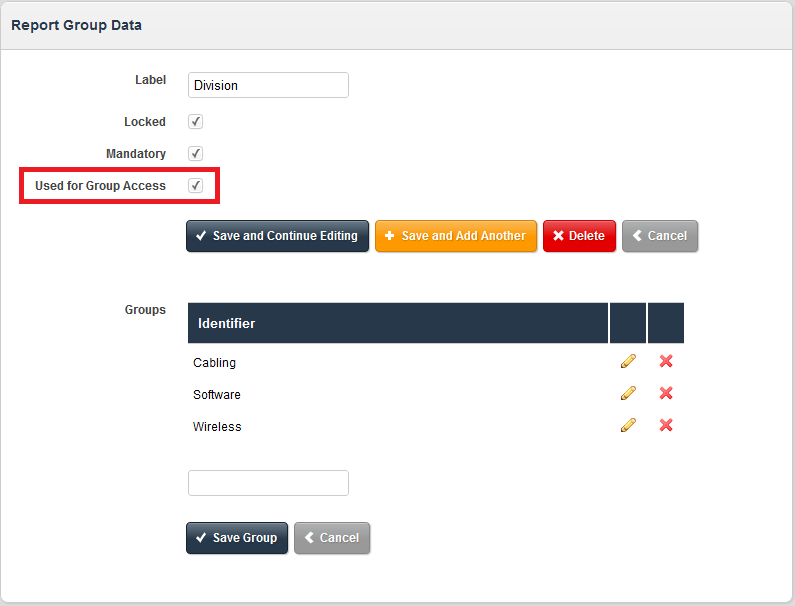
Create (or find) the report group you decided on in step 1 and click it. On the right, you will see an option that says “Used For Group Access”. Check this and it will now allow you to assign users. For 3CIS, this is “Division”.
It is best practice, though not strictly necessary, to have the group locked and mandatory as well. If in doubt, set both of these.
Under Groups, add the different groups that apply. Again, for 3CIS, these are “Cabling”, “Wireless”, and “Software”.
Step 3: Add/Modify users
When you are happy with the setup, it is now time to add users to that group. Click Settings…User Accounts, and choose (or create) someone to whom group access applies.
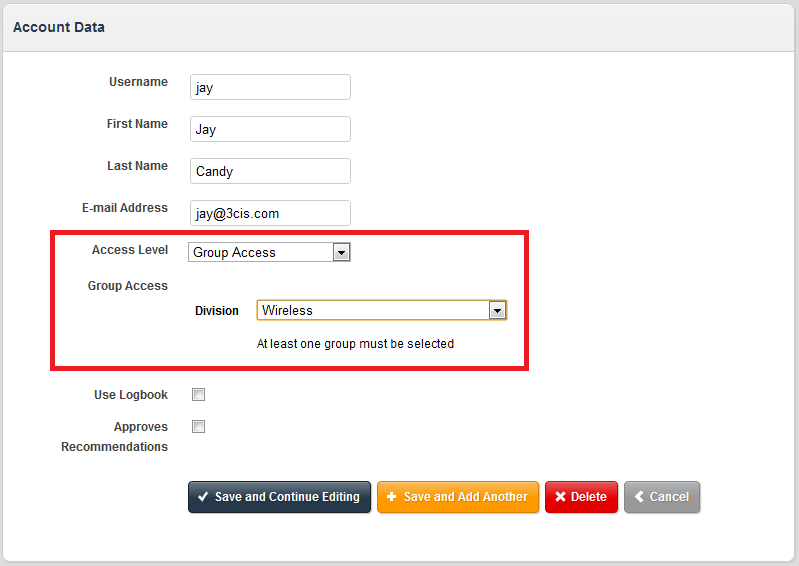
In the Access Level drop-down, there are now 3 choices:
- Reporter
- Group Access
- Admin
Choosing Group Access now enables the Group Access area. You will see the group that you specified in step 2. For 3CIS, this is Division, and in that drop-down, there is Wireless, Cabling, and Software. Pick the one that applies for this person and click one of the Save buttons.
End Result
For the newly set up person, they will now only see Incident, Near Misses, and Hazards that are part of that group. And, when creating a new report, the report is automatically tagged with the groups they are in.
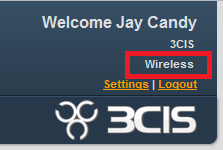
You will see what group a person is part of in the top right of the menu, giving a clear indicator of what reports that person is seeing.
Note: Not all companies require or use GLA. If you do not have this ability but would like it, please contact us to turn this on for your company.